Meeple Incremental Controls & Camera
Pan, zoom, and roll without fighting the UI—keyboard shortcuts plus mouse-only accessibility notes.
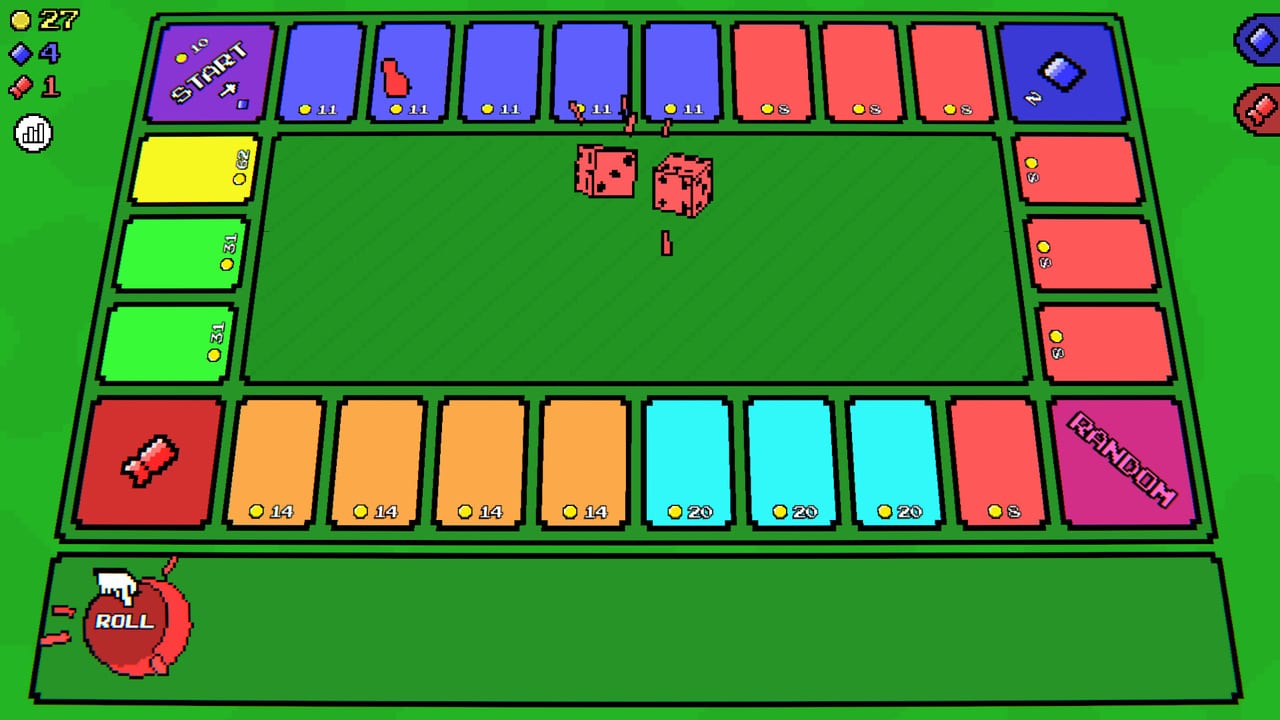
Meeple Incremental’s board gets busy once several meeples auto-roll at once. Good camera control is not a luxury—it is how you notice yellow-tile money spikes, skill-point tiles, and whether automation is actually running. This page is the controls reference; strategy stays in the Guides Hub.
Core camera controls
| Action | Input |
|---|---|
| Zoom in / out | Q / E or mouse wheel |
| Pan | Click-drag or WASD |
| Focus skill tree / board | Use the same zoom/pan pair in each view when available |
These bindings were called out in demo patches (zoom update) and carry into the full release with clearer helper tips. If something feels missing after a patch, check Patch Notes.
Rolling & clicking
- Manual roll / click — interact with the dice or clicker UI to move meeples before automation.
- Auto-clickers — purchase in the shop so rolls continue idle (Automation).
- Hold interactions — some UI elements support click-and-hold behaviors introduced during demo QoL updates; try holding when a single click seems insufficient.
You do not need perfect APM. The genre fantasy is supervision, not a fighting game.
Mouse-only accessibility
You can play primarily with the mouse:
- Use the wheel to zoom instead of Q/E.
- Click-drag to pan instead of WASD.
- Click shop, skill, collectible, and minigame buttons directly.
- Rely on auto-clickers so you are not physically clicking dice forever.
Steam lists comfort-oriented features such as save anytime and camera comfort options—combine those with zoom-out defaults if motion bothers you.
Keyboard shortcuts remain available for players who like them; neither style is required.
UI regions you will visit constantly
- Board — meeple traffic, tile payouts, roaming reward objects when present
- Shop — meeples, auto-clickers, minigame speed upgrades (full release)
- Skill tree — main tree plus per-minigame trees (Skill Tree)
- Collectibles / capsules — spend tickets (Collectibles Tier List)
- Minigames panel — play and automate (Minigames)
Zoom out on the board before AFK so you can instantly see if something stalled when you return.
Multi-meeple readability tips
- When Yellow tiles start paying huge money, zoom to confirm traffic (All Meeples).
- After buying a new color, watch one full lap to ensure auto-clickers drive it.
- Prestige boards with extra meeples need even more pan discipline (Prestige).
Controllers & Steam Deck
Store compatibility may list Steam Deck status as unknown or updating—verify on the Steam page. Mouse/keyboard is the documented baseline. Community tips appear on Discord.
Settings worth checking
- Fullscreen vs windowed for dual-monitor guide reading (hello, this wiki)
- Audio levels for cozy dice feedback without fatigue
- Any camera comfort toggles Steam advertises for the title
Learning path
- Practice zoom/pan for 30 seconds on a quiet board
- Buy your first upgrades via Getting Started
- Enable automation so camera work is about reading, not clicking
- Use the Progression Checklist while navigating menus
Sibling tool page: Progression Checklist. Hub: Tools Hub.
Troubleshooting input issues
- Zoom does nothing: click the board or skill canvas first so focus is not on a text field.
- Pan feels inverted or sticky: try WASD as a second option, or release drag more cleanly between strokes.
- Cannot tell if auto-clickers work: zoom out, watch dice/meeple motion for ten seconds, then open the shop to confirm purchases (Automation).
- Lost after opening minigames: close the panel, zoom out, re-orient on Start, then jump back (Minigames).
Laptop trackpads handle drag-pan fine; a cheap mouse wheel just makes zoom less fiddly during long skill-tree planning sessions.
There are no secret “control codes”—and still no redeemable cheat codes (Codes). Master Q/E, the wheel, and drag-pan, and the board stays legible all the way to optional prestige.
Frequently Asked Questions
Quick answers to the most common questions.
How do I zoom in Meeple Incremental?
Press Q/E or scroll the mouse wheel. The same idea applies in large skill tree views.
How do I pan the board?
Click and drag or use WASD.
Can I play mouse-only?
Yes—wheel zoom, drag pan, and UI clicks cover the basics, especially with auto-clickers.
Where is the automation guide?
See Automation after you are comfortable with camera moves.
Did controls change after the demo?
Zoom/pan QoL from demo patches carries into 1.0 with better tipping—Full Release.